Calculated Metrics
Most metrics are things you log or sync — a number, a yes/no, a note. A calculated metric is different: it's a saved formula over other metrics. You never log to it directly; Cohearence recomputes it on the fly from whatever its inputs say, every time you view it.
Think "Total Cardio" built from Running + Cycling + Swimming, or "Net Calories" as Calories In minus Calories Out — set the formula up once, and it stays current automatically as the underlying metrics get new entries.
Creating one
Tap New calculated metric from the metrics screen, or start from an existing metric and choose to build a formula on top of it. Either way, you land in the same builder, which walks through three steps:
- Inputs — pick the metrics that feed the formula. Text metrics and time-of-day metrics can't be used as inputs; everything else (numbers, yes/no, categories, events) is fair game, including other calculated metrics.
- How to combine — pick a recipe, or write a custom formula.
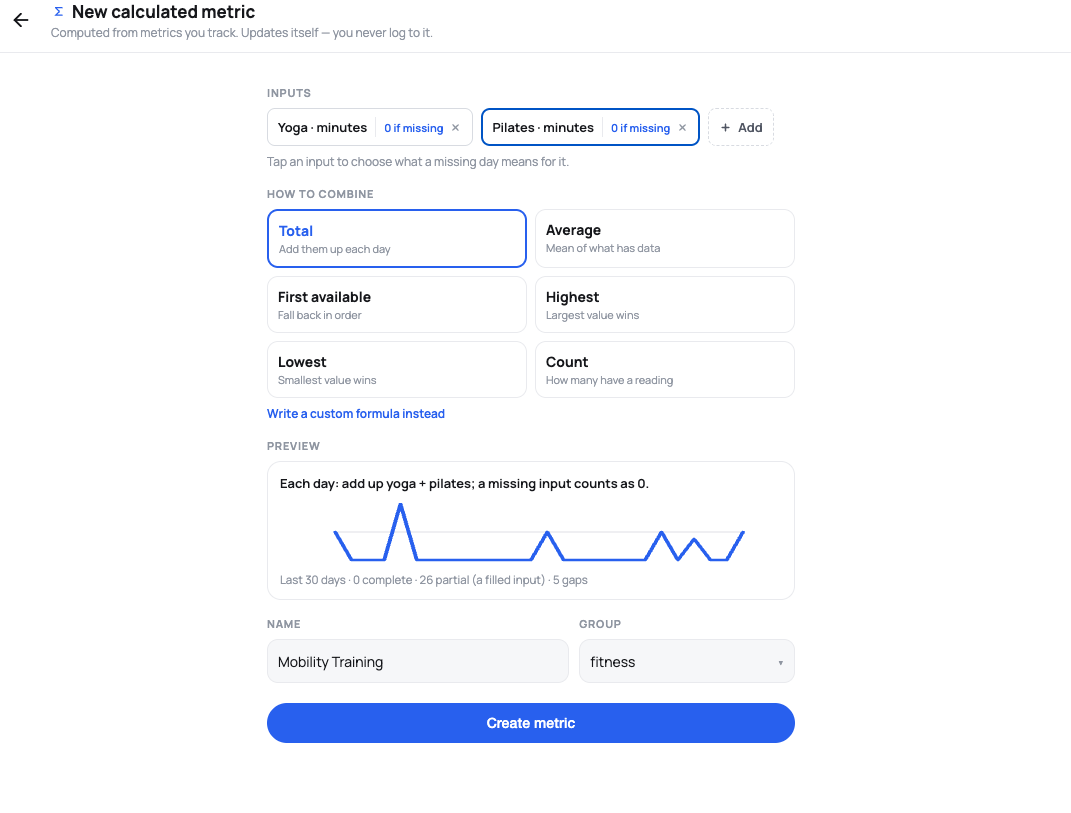
- Preview — see a plain-English read-back of exactly what the formula means, a chart of it evaluated against your real data, and a coverage count, before you save anything.
Here's a "Mobility Training" calculated metric totaling Yoga and Pilates minutes, with a missing day on either input counting as 0:
Recipes
| Recipe | What it does |
|---|---|
| Total | Adds the inputs together each day. |
| Average | The mean of whichever inputs have data that day. |
| First available | Uses the first input that has a reading, falling back to the next in order — useful for "Oura heart rate, or Fitbit's if Oura is missing that day." |
| Highest | The largest of the inputs each day. |
| Lowest | The smallest of the inputs each day. |
| Any | Yes if any input is yes (only available when every input is a yes/no metric). |
| Count | How many inputs have a real reading that day. |
If none of these fit, switch to a custom formula and write your own arithmetic expression over the inputs (e.g. (m12 * 4 + m15) / 5). Custom formulas support arithmetic and comparisons only — no external functions.
Handling missing data
Every input has its own answer to "what happens on a day this metric wasn't logged?" By default that's type-appropriate (a missing yes/no counts as no; a missing number leaves a gap), but you can override it per input: count it as zero, use its running average, use a specific value, or leave a gap. Tap an input in the builder to change its policy — it's part of the formula's definition, so every chart and statistic that uses the calculated metric applies it consistently.
The preview
The preview panel evaluates your exact formula against your last 30 days of data — the same evaluator used everywhere else in Cohearence, so what you see is exactly what you get. It shows:
- A read-back sentence — a plain-English description of the formula, including how missing data is handled.
- A chart of the result overlaid on its inputs.
- A coverage count — how many days are complete, how many are only partial (because a missing input got filled in), and how many are gaps.
Saving is disabled until the current configuration has previewed successfully, so you never save a formula you haven't seen evaluated.
Where calculated metrics show up
- They appear in your metrics list and library alongside everything else, marked with a Σ icon.
- Their detail screen shows the formula (with an Edit shortcut back into the builder) instead of a log button — there's nothing to log.
- They can be selected on the Analysis page and used as inputs to other calculated metrics, so you can build multi-level formulas.
Editing and deleting
Editing a calculated metric replaces its formula outright — inputs, recipe, and missing-data policies are all set fresh each time you save. If you try to delete a metric that other calculated metrics depend on as an input, Cohearence warns you first, since removing it would break those formulas.